If you've ever worked with Divi's Dutch translations, you know they're not great. That's why I choose to do everything in English. It's not only clearer, but there are also way more English tutorials available. This applies to most software. For that reason, I've always worked with software in English.
So, if you want to follow my tutorials, it's super handy to set everything to English. This keeps things easy and consistent, and makes my guides easier to follow. Below, I'll explain how to turn off the Dutch translations in Divi and in WordPress itself.
These settings don't affect your website's language; they only change the interface language of your WordPress dashboard and Divi environment.
Changing the language of the WordPress environment
You can set the WordPress environment language in your user profile.
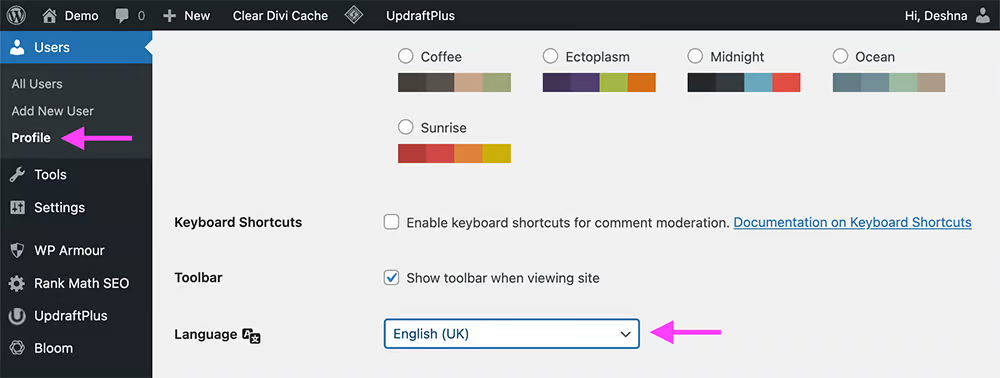
1. Log in on your WordPress dashboard: Use your personal login details.
2. Open your profile settings: Click on 'Users' in the left menu and select your 'Profile'.
3. Choose English as the language: Under 'Language' you'll find a drop-down menu. Select 'English' here. I usually go for UK English, and sometimes Australian English 😉
Note: If English isn't available, you'll need to download and install the language in WordPress first.
4. Update: Click 'Update Profile' to save your changes.
With these simple steps, you can quickly change your own user profile language to English.
Disabling the translation of the Divi Theme
If you're using the Divi Theme and want to disable the default translations to keep a consistent English environment, follow the simple steps below.
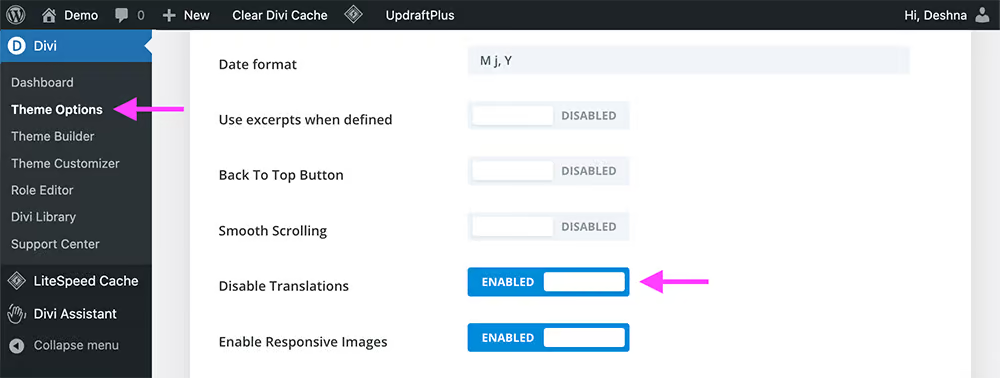
1. Navigate to Divi Theme Options: Go to your WordPress Dashboard. Click on 'Divi' in the sidebar and click 'Theme Options'.
2. Find the Translation Settings: Look under the 'General' tab where you can find 'Disable Translations'. This option is almost at the bottom of the page.
By adjusting these settings, you ensure that your entire Divi interface displays in the original English language, enhancing the clarity and comprehension of your tutorials.
Finally
If you're using a translation plugin because your website is multilingual, things might work differently than described above.
 Nederlands
  English (UK)